
Centos Install MemCached, Apcu and OpCache
This section provides instructions to install memcached on CentOS and Ubuntu. For additional information, consult the memcached
To install memcached on CentOS, perform the following tasks as a user with root privileges:
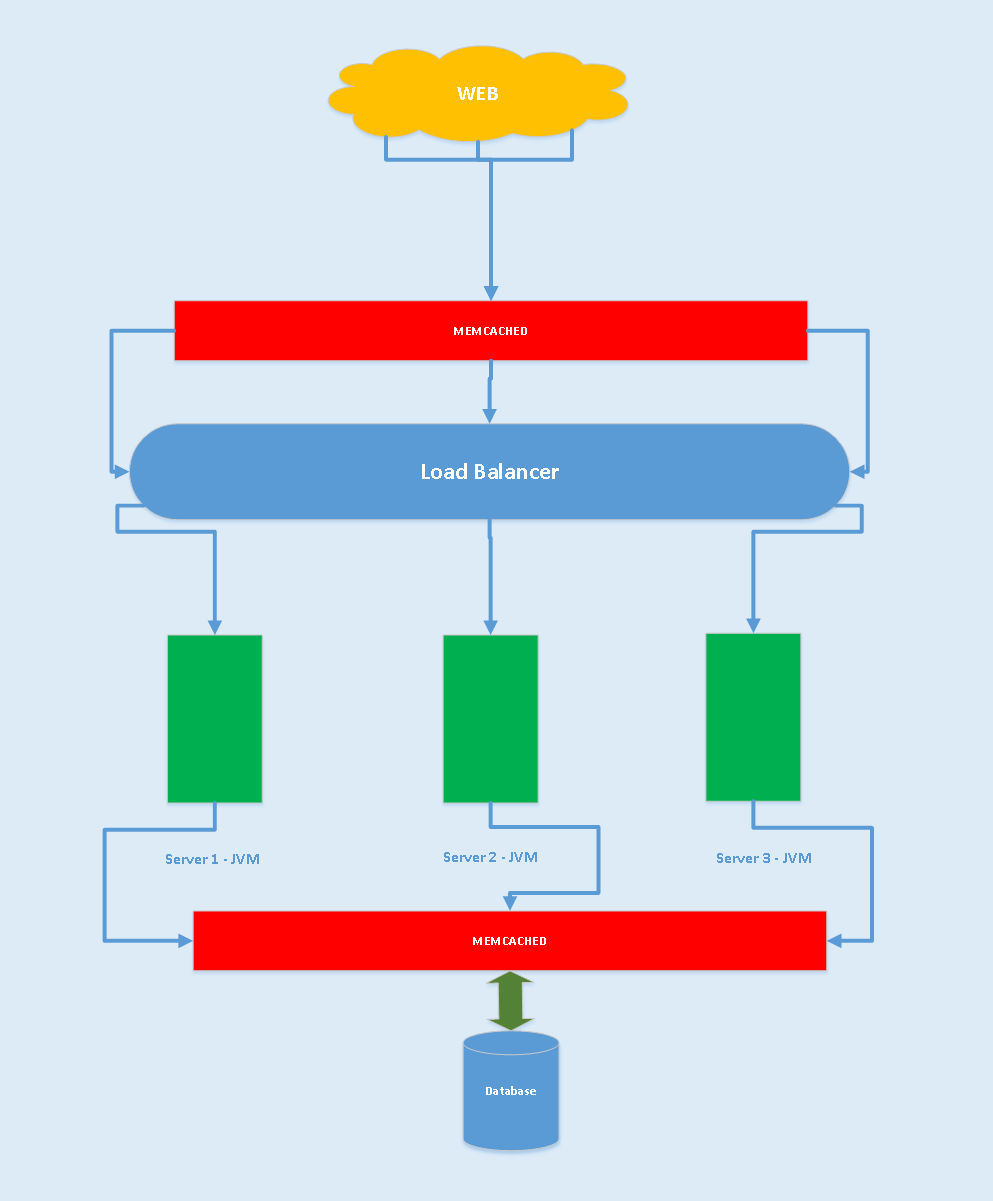
Install memcached and its dependencies:
yum -y update
yum install -y libevent libevent-devel
yum install -y memcached
yum install -y php-pecl-memcache
Change the memcached configuration setting for CACHESIZE and OPTIONS:
Open /etc/sysconfig/memcached in a text editor.
Locate the value for CACHESIZE and change it to at least 1GB.
For example
CACHESIZE="1GB"
Service memcached restart
Restart your web server.
systemctl restart nginx
Install Apcu
These section we will install APCu (Alternative PHP Cache) on CentOS 7. APCu provided both opcode caching (opcache) and object caching APCu is the replacement for the outdated APC extension. It's very easy to install. Just follow these steps:
1. Install APCu . Before installing APCu, if your server doesn't have Remi Repository, install that first using this command:
sudo yum install http://rpms.remirepo.net/enterprise/remi-release-7.rpm
Now run this command to install APCu:
sudo yum install php-pecl-apcu
2. Dependency Packages for APCu , By entering this command, you can install dependency packages for APCu:
sudo yum install php-pear php-devel httpd-devel pcre-devel gcc make
3. Restart Web Server
sudo systemctl restart nginx php-fpm
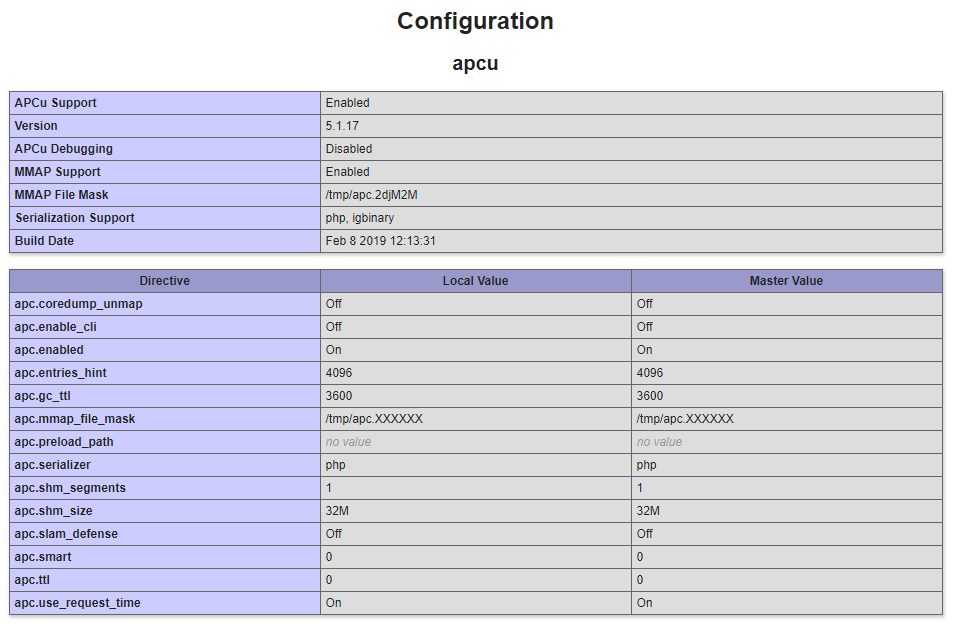
Now check your phpinfo(); script to see APCu is installed or not:
4. APCu Admin Page
This is an optional step. I’m sharing a PHP file. You need to keep this file to your domain’s public html folder to see APCu admin page. Download this file from GitHub: Now open the file from browser (http://example.com/apcu.php):
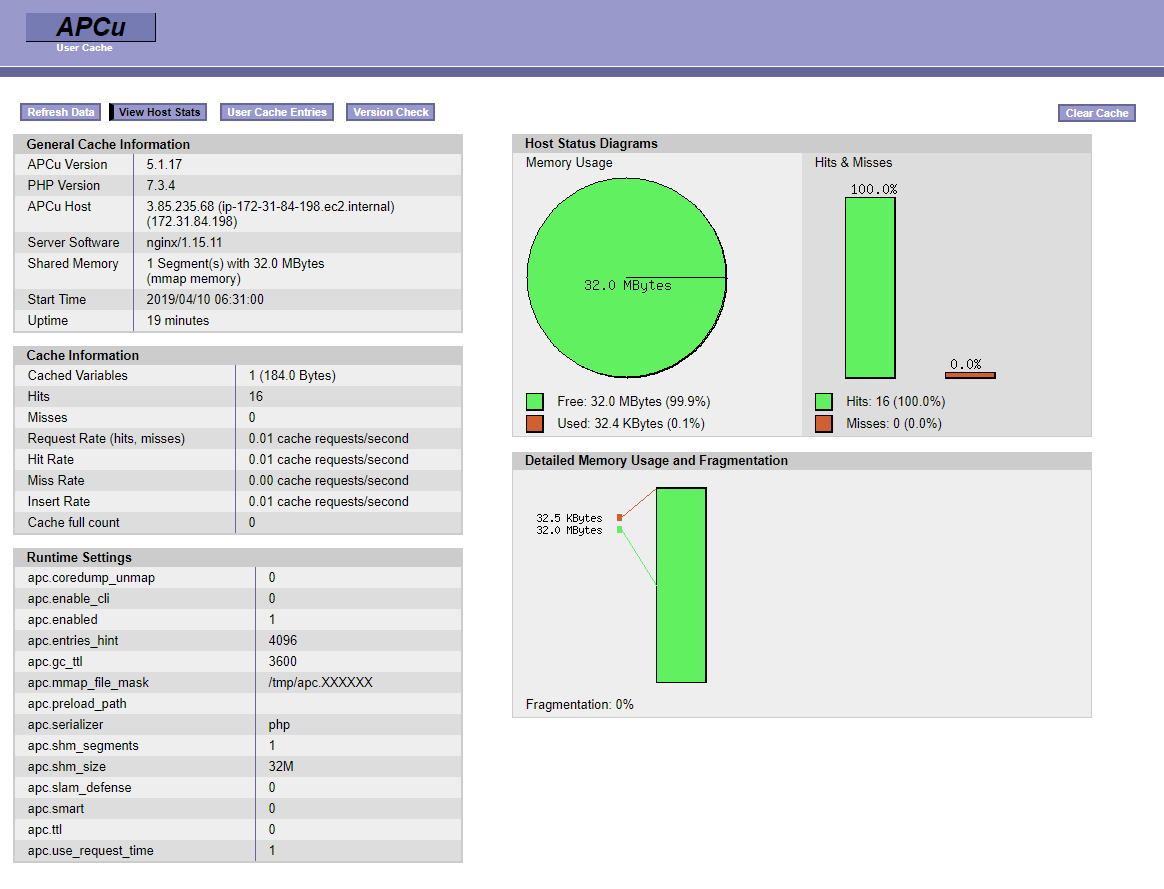
The default username and password is: admin, admin. You can change this from the apcu.php file:
#0 or 1. 0 for disable user and pass
defaults('USE_AUTHENTICATION',0);
defaults('ADMIN_USERNAME','admin');
defaults('ADMIN_PASSWORD','admin');
5. Config APCu
We can easily configure APCu. Open /etc/php.ini file and add value like this:
#Enable/Disable
apc.enabled=1
# Memory Segments
apc.shm_size=512M
## PHP file cache 1 hour##
apc.ttl=3600
## User cache 2 hour ##
apc.user_ttl=7200
## Garbage collection 1 hour ##
apc.gc_ttl=3600
6. Store and Fetch Data
Create a file named cache.php and paste this code:
Now visit the cache.php to see the output.
Install OpCache
sudo yum install php-opcache -y
Now we can set our own config like:
nano /etc/php.d/10-opcache.ini
opcache.enable_cli=1
opcache.memory_consumption=128
opcache.interned_strings_buffer=8
opcache.max_accelerated_files=4000
opcache.revalidate_freq=60
opcache.fast_shutdown=1